

The big picture
When you log in, the screen has three main parts. Once you know these three, you’ll never feel lost.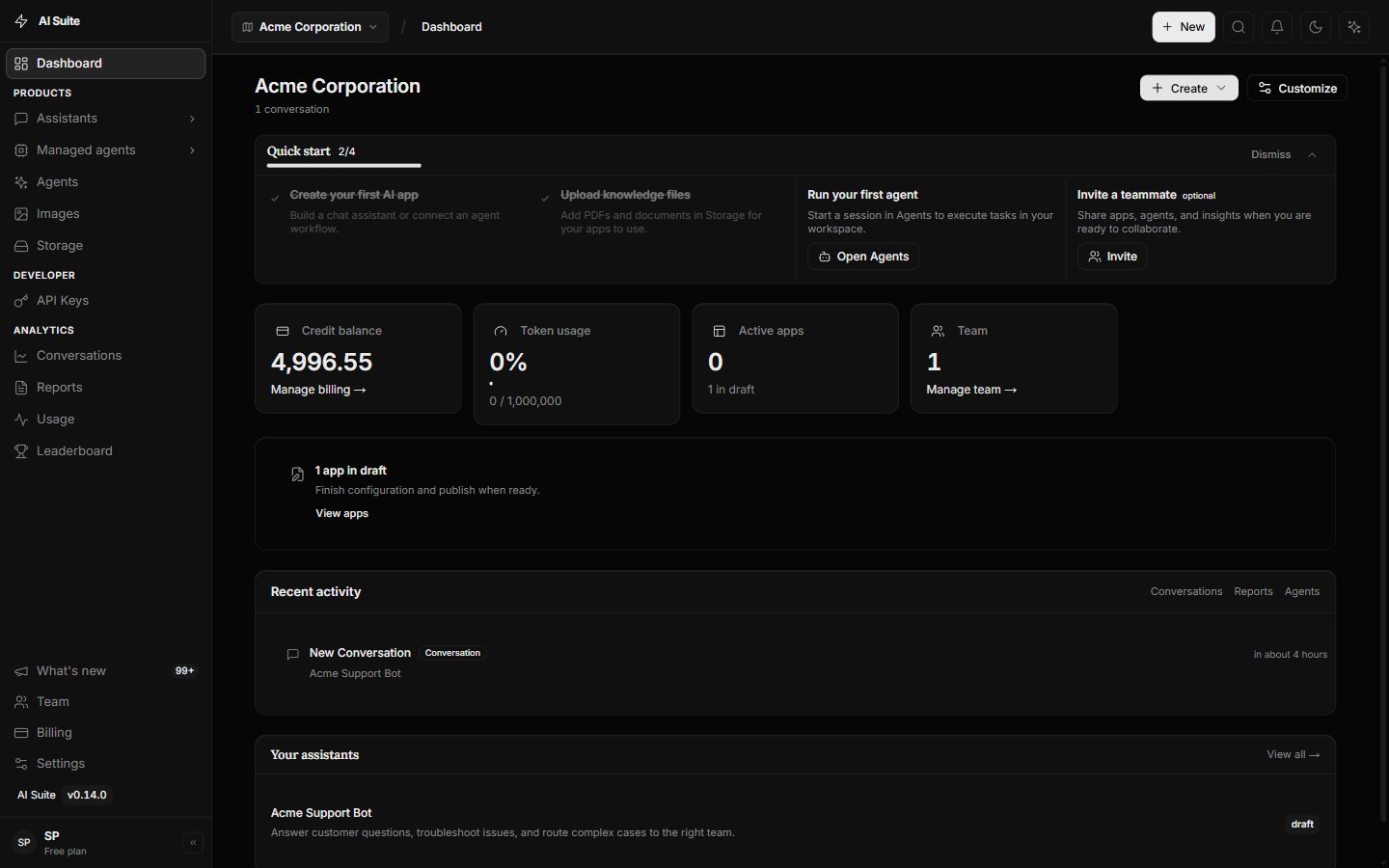
The workspace: (1) the menu on the left, (2) the top bar, (3) the big work area in the middle.
1
The menu on the left (the sidebar)
This is how you move around the platform. Each item opens a different area. Agents is where you’ll spend most of your time.
2
The top bar
Shows where you are right now, and holds your profile, notifications, and workspace switcher on the right.
3
The main area in the middle
This is where the work happens — your Agent chats, files, settings, and more.
What’s in the left menu?
Here’s what each item does, in plain words. Don’t memorize it — just know it’s here.On a phone, the menu moves to the bottom of the screen and shows the most-used items (often including Agents). Tap them the same way.
The top-right corner
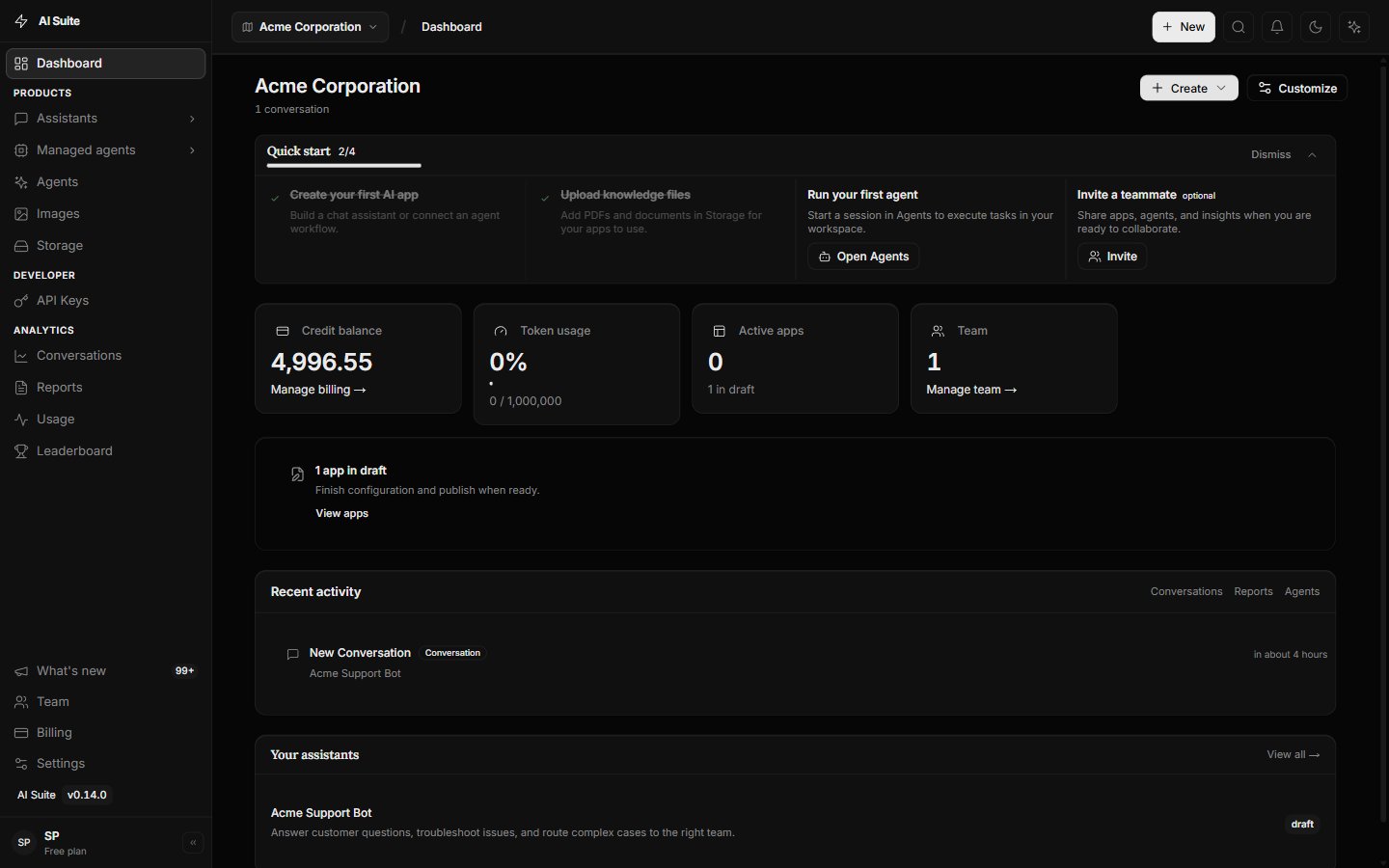
Top-right: switch workspaces, check notifications, and open your profile.
- Workspace switcher — if you belong to more than one workspace, switch between them here.
- Notifications (the bell) — updates and alerts show up here.
- Your profile — click your picture or initials to reach account settings and to log out.
A handy shortcut
Press Ctrl + K (or Cmd + K on a Mac) anywhere to open a search box. Start typing where you want to go — like “agents” or “settings” — and jump straight there.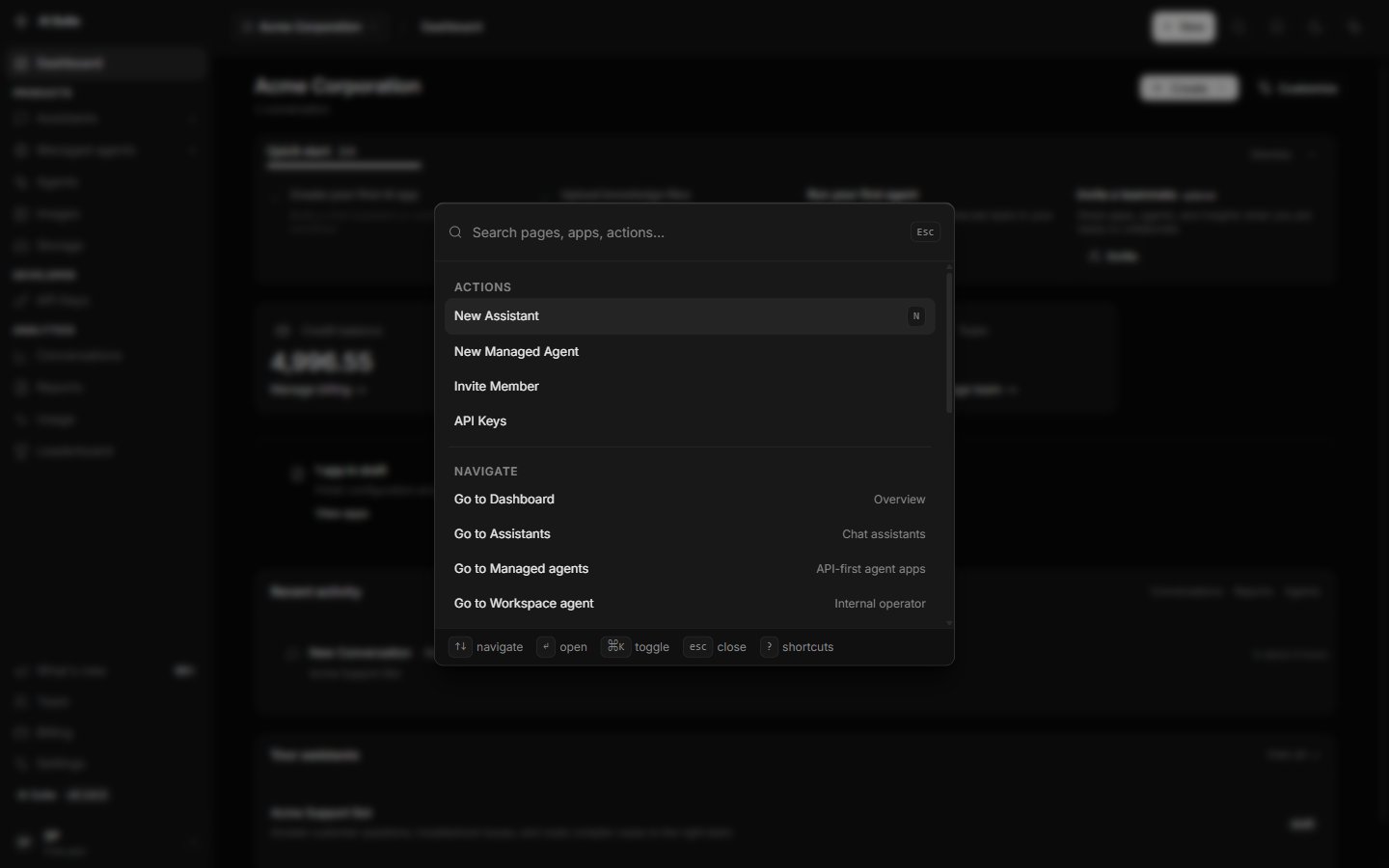
The quick search. Press Ctrl+K, type where you want to go, and press Enter.
Next step
Chat with your first Agent
Open Agents and get a downloadable document in a few minutes.