> ## Documentation Index
> Fetch the complete documentation index at: https://docs.sundaypyjamas.com/llms.txt
> Use this file to discover all available pages before exploring further.
# Using the Agents Tab
> Find your way around the Agents workspace — sessions, tabs, search, and switching agents.
## The layout
The Agents tab has three simple areas. Once you know them, you'll feel at home.
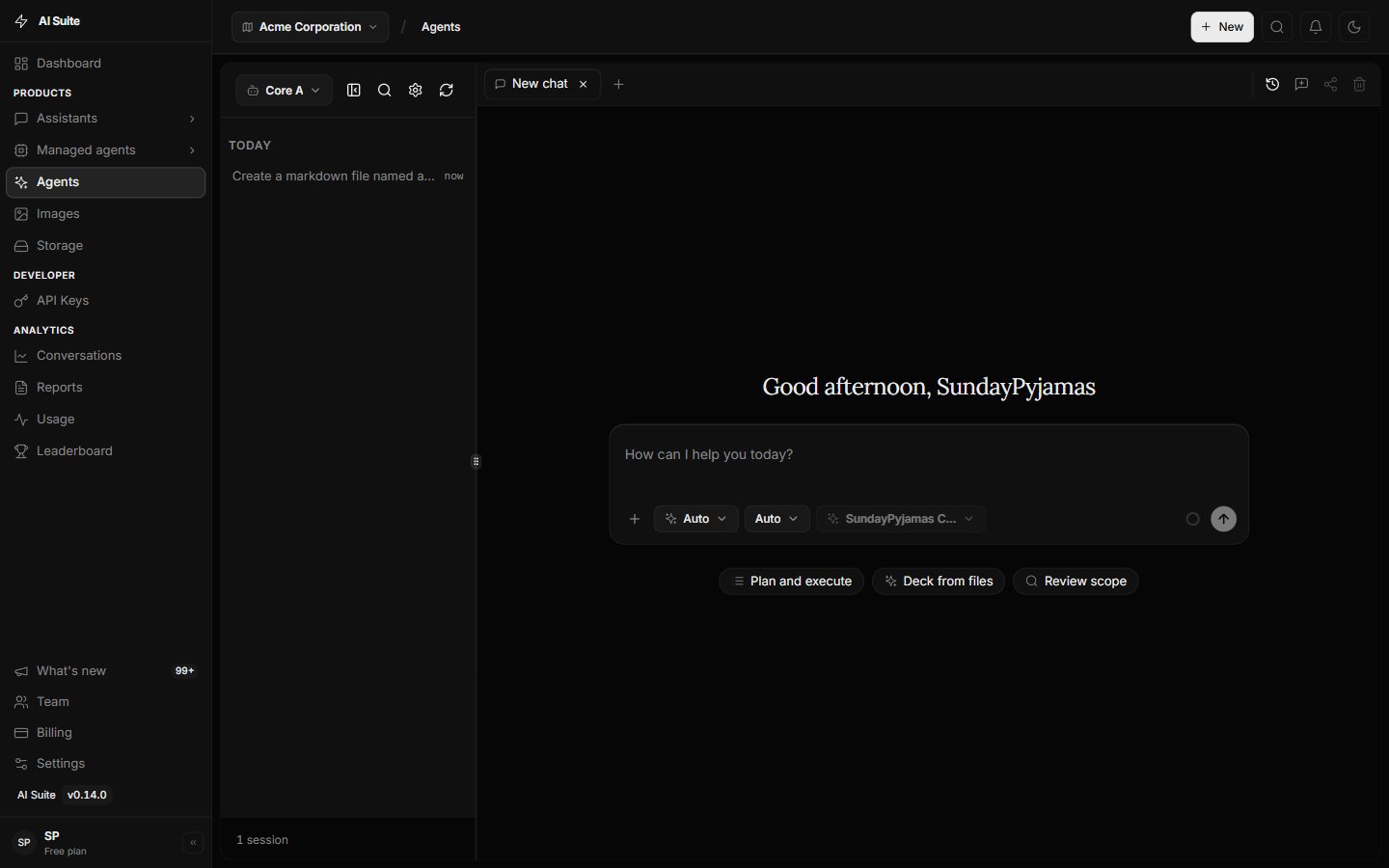 Every conversation you've had with the agent is saved here, newest first. Click one to reopen it.
Where you talk to the agent and read its replies.
When the agent creates a file or artifact, it opens here so you can read and download it. It stays hidden until there's something to show.
## Working with sessions
A **session** is one saved conversation. Think of each session as a separate notepad for a separate task.
Click the **+** (New tab) to begin a fresh conversation. Great for starting a new task.
Click any item in the session list to continue where you left off.
Click the search icon and type to find an old conversation by its words.
Hover a session for options: rename it, [share it](/user-guide/agents/run-and-share), or delete it.
## Open several chats at once (tabs)
The Agents tab lets you keep **multiple conversations open in tabs**, just like a web browser. Each tab is its own session.
Click the **+** button in the tab strip. A fresh "New chat" tab appears.
Click any tab to jump to that conversation. Your place in each one is kept.
Click the small **×** on a tab to close it. The session is still saved in your list — closing a tab doesn't delete it.
Tabs are perfect when you're juggling a few things — keep one agent working on a report while you start a different task in another tab.
## Choosing which agent you're talking to
At the top of the session list there's an **agent picker**. By default you're talking to the **Core Agent** — that's what most people use every day. If you've built an [Assistant](/user-guide/assistants), you can switch to it here.
Every conversation you've had with the agent is saved here, newest first. Click one to reopen it.
Where you talk to the agent and read its replies.
When the agent creates a file or artifact, it opens here so you can read and download it. It stays hidden until there's something to show.
## Working with sessions
A **session** is one saved conversation. Think of each session as a separate notepad for a separate task.
Click the **+** (New tab) to begin a fresh conversation. Great for starting a new task.
Click any item in the session list to continue where you left off.
Click the search icon and type to find an old conversation by its words.
Hover a session for options: rename it, [share it](/user-guide/agents/run-and-share), or delete it.
## Open several chats at once (tabs)
The Agents tab lets you keep **multiple conversations open in tabs**, just like a web browser. Each tab is its own session.
Click the **+** button in the tab strip. A fresh "New chat" tab appears.
Click any tab to jump to that conversation. Your place in each one is kept.
Click the small **×** on a tab to close it. The session is still saved in your list — closing a tab doesn't delete it.
Tabs are perfect when you're juggling a few things — keep one agent working on a report while you start a different task in another tab.
## Choosing which agent you're talking to
At the top of the session list there's an **agent picker**. By default you're talking to the **Core Agent** — that's what most people use every day. If you've built an [Assistant](/user-guide/assistants), you can switch to it here.
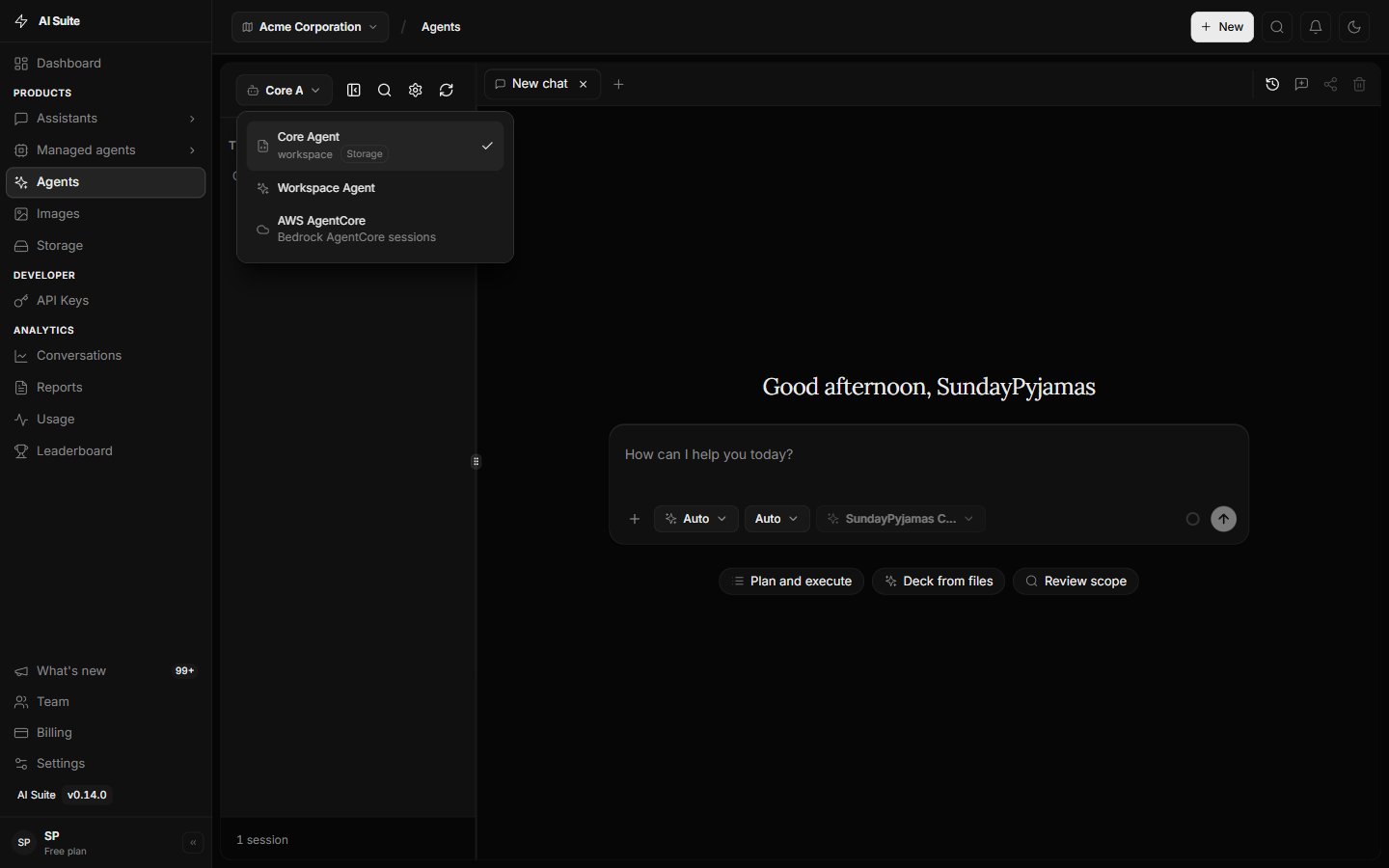 Custom Assistants are optional and covered under [More Ways to Work](/user-guide/assistants). You do not need them to create documents, sheets, or PDFs.
## The agent settings button
Next to the search icon is a **settings** (gear) button. It opens the agent's configuration, where you can adjust how it behaves. See [Configure the Core Agent](/user-guide/agents/configure).
## It's also a side panel
The same agent is available as a **slide-out panel** on other pages, so you can get help without leaving what you're doing. Look for the assistant button (often a sparkle icon) in the top bar to open or close it.
## Next step
Chat, tools, multi-step tasks, and docs / sheets / PDFs.
Custom Assistants are optional and covered under [More Ways to Work](/user-guide/assistants). You do not need them to create documents, sheets, or PDFs.
## The agent settings button
Next to the search icon is a **settings** (gear) button. It opens the agent's configuration, where you can adjust how it behaves. See [Configure the Core Agent](/user-guide/agents/configure).
## It's also a side panel
The same agent is available as a **slide-out panel** on other pages, so you can get help without leaving what you're doing. Look for the assistant button (often a sparkle icon) in the top bar to open or close it.
## Next step
Chat, tools, multi-step tasks, and docs / sheets / PDFs.